

Protos AI Quick Start Guide
This guide will walk you through the core areas of the platform so you can start orchestrating your agent swarm immediately.
Welcome to your mission control for autonomous threat intelligence. This guide will walk you through the core areas of the platform so you can start orchestrating your agent swarm immediately.
1. The Command Centre: Your Mission Control
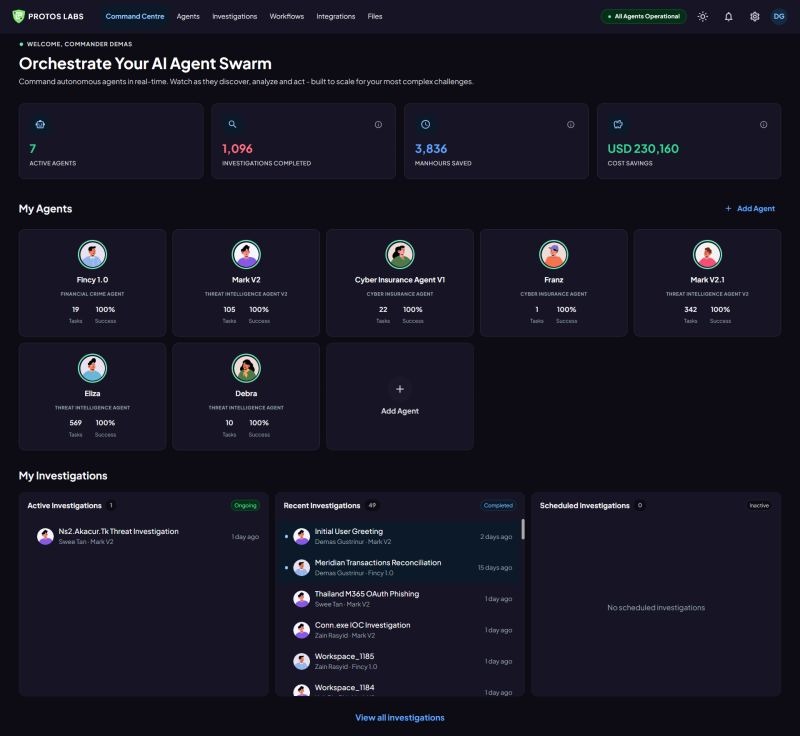
The Command Centre is where you oversee your entire intelligence operation at a glance.
- Performance Metrics: Track active agents, completed investigations, manhours saved, and total cost savings (e.g., seeing that your swarm has saved over $230,000).
- My Agents: View your roster of specialised agents (like Mark V2 for Threat Intel or Fincy 1.0 for Financial Crime).
- Live Investigations: Monitor ongoing, recent, and scheduled tasks in real-time.
2. Meet Your Agents & Skills
Agents are the workers of Protos AI. Each agent can be customised with specific Skills:
- Agent Details: You can set a default agent (like Mark V2.1) to handle most tasks.
- The Skills Library: These are modular investigation capabilities you can toggle on/off:
- Cyber Graph Building: To map out threat infrastructure.
- Infra Recon: To analyse attack surfaces.
- Vulnerability Analysis: To prioritise CVEs with EPSS scores.
- Integrations: To connect your preferred data sources/tools/feeds (requires your own key(s)).
3. Running an Investigation
Once an investigation is launched, the Investigation Workspace provides a three-pane view for total clarity:
- Left Pane (Sources): A live list of all files, web searches, and OSINT tools the agent is currently using.
- Middle Pane (Analyst Chat): Talk to your agent in real-time. You can see their thinking process and receive summaries of findings.
- Right Pane (Insights & Findings): Overview: See the high level progress of the Investigation Plan.
- Findings: A ranked list of identified threats (High/Medium/Low) like Confirmed ransomware intrusion.
- Evidence: Access the raw data supporting each finding.

4. Visualising Threats with the Cyber Graph
Intelligence is not just text—it is connections. Use the Graph View to:
- Visualise the relationship between Actors, IPs, Domains, and Vulnerabilities.
- Pivot through data points to see how a single CVE might link to multiple infrastructure assets.

5. Generating Your Final Report
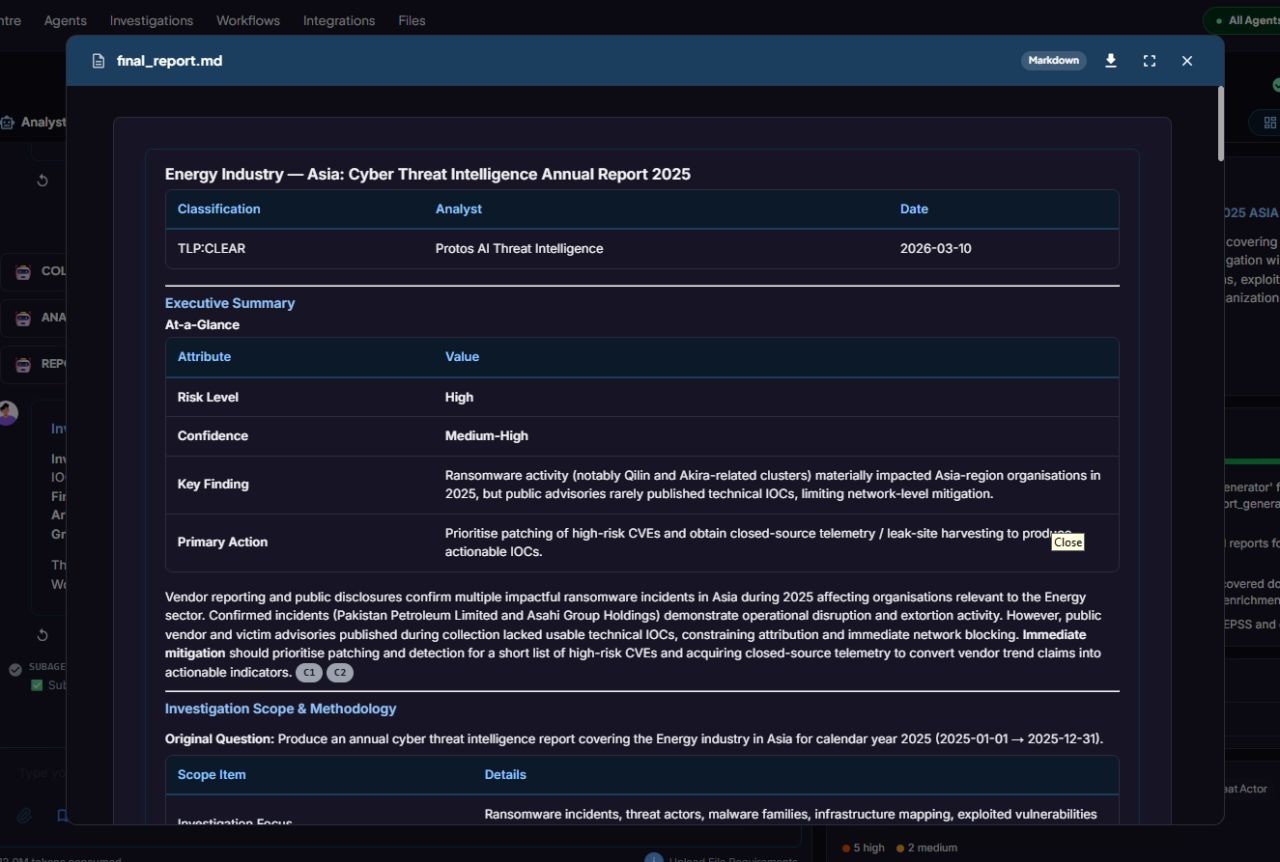
When the investigation is complete, Protos AI generates a professional, boardroom-ready Markdown Report.
- TLP Classification: Automatically assigns sensitivity levels (e.g., TLP:CLEAR).
- Executive Summary: Includes an At-a-Glance table with Risk Level and Primary Actions.
- Export Options: Download the report or copy the Markdown text for your internal wiki or ticketing system.
Pro-Tip: The “Confirm & Promote” Button
Found something critical? Use the Confirm & Promote button in the top-right of your investigation workspace to graduate a finding into your permanent Organizational Intelligence Memory.
.png)